





1Check what's using the CPU

Open Task Manager (Windows) or Activity Monitor (Mac) and close apps or browser tabs using a lot of CPU.
Quiet a loud laptop fan and stop overheating: check apps, clean vents with compressed air, and update settings.
A fan that roars all the time usually means dust-clogged vents, blocked airflow, or a program using lots of CPU. Cleaning the vents and checking background apps fixes most laptops without opening them.

As an Amazon Associate, RepairAI may earn from qualifying purchases. Check that parts fit your exact model before buying.
Open Task Manager (Windows) or Activity Monitor (Mac) and close apps or browser tabs using a lot of CPU.
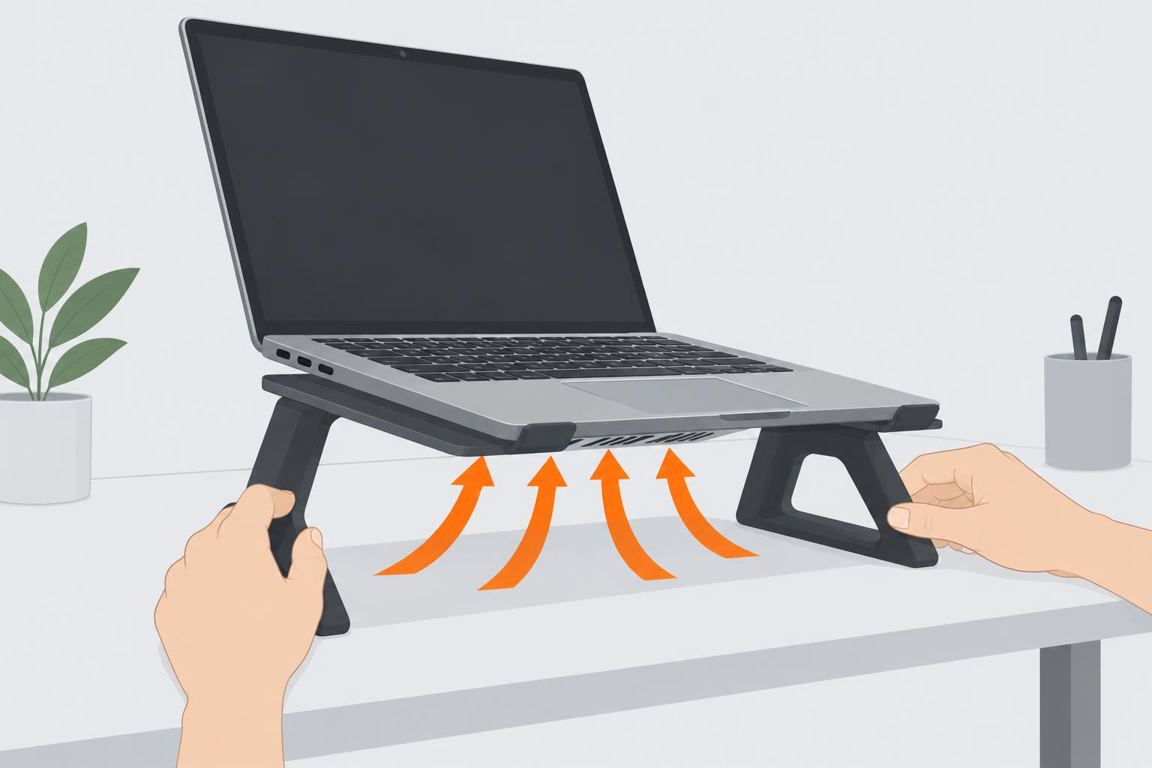
Use it on a hard, flat surface. Beds and blankets block the intake vents.
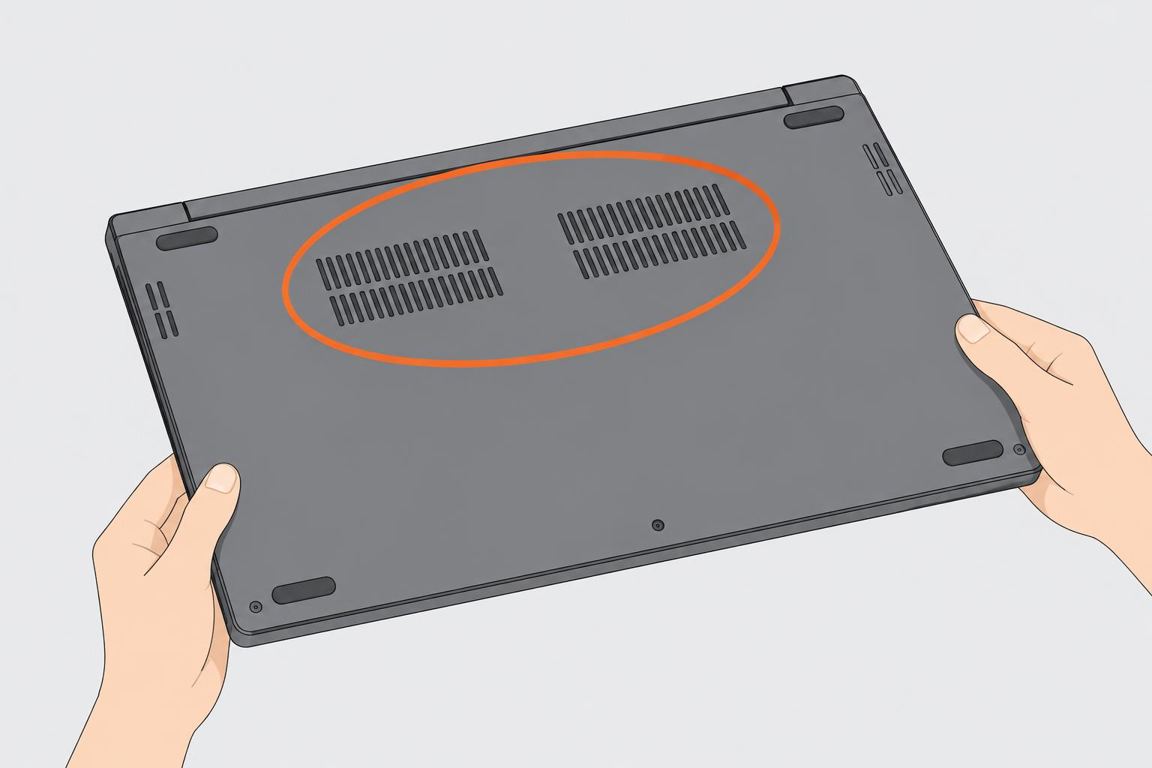
Turn the laptop over and find the intake vents (bottom) and exhaust vents (side or back).
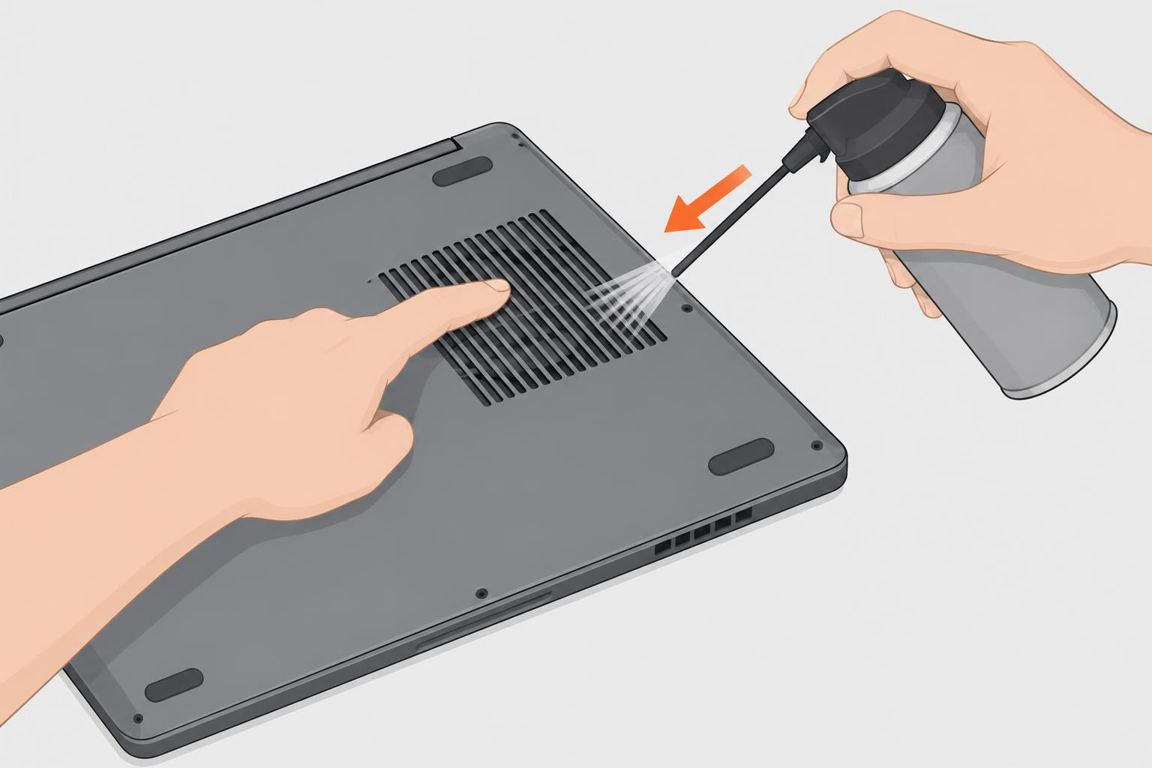
Use short bursts of compressed air into the vents. Keep the can upright, and don't let the fan spin wildly.
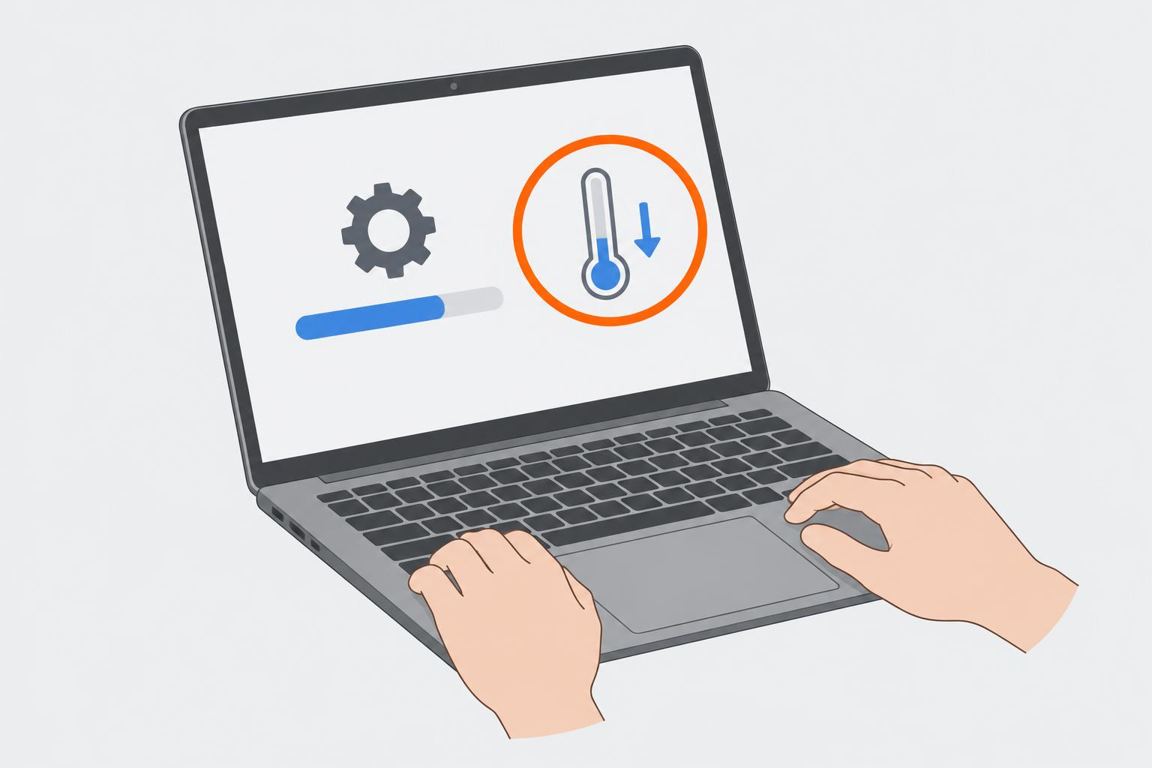
Install system and BIOS updates and pick a balanced power mode. Then check if the fan calms down.

General guidance only. Turn off power, water or gas before you work and follow the manufacturer’s instructions; if unsure, call a qualified professional.
 Log in